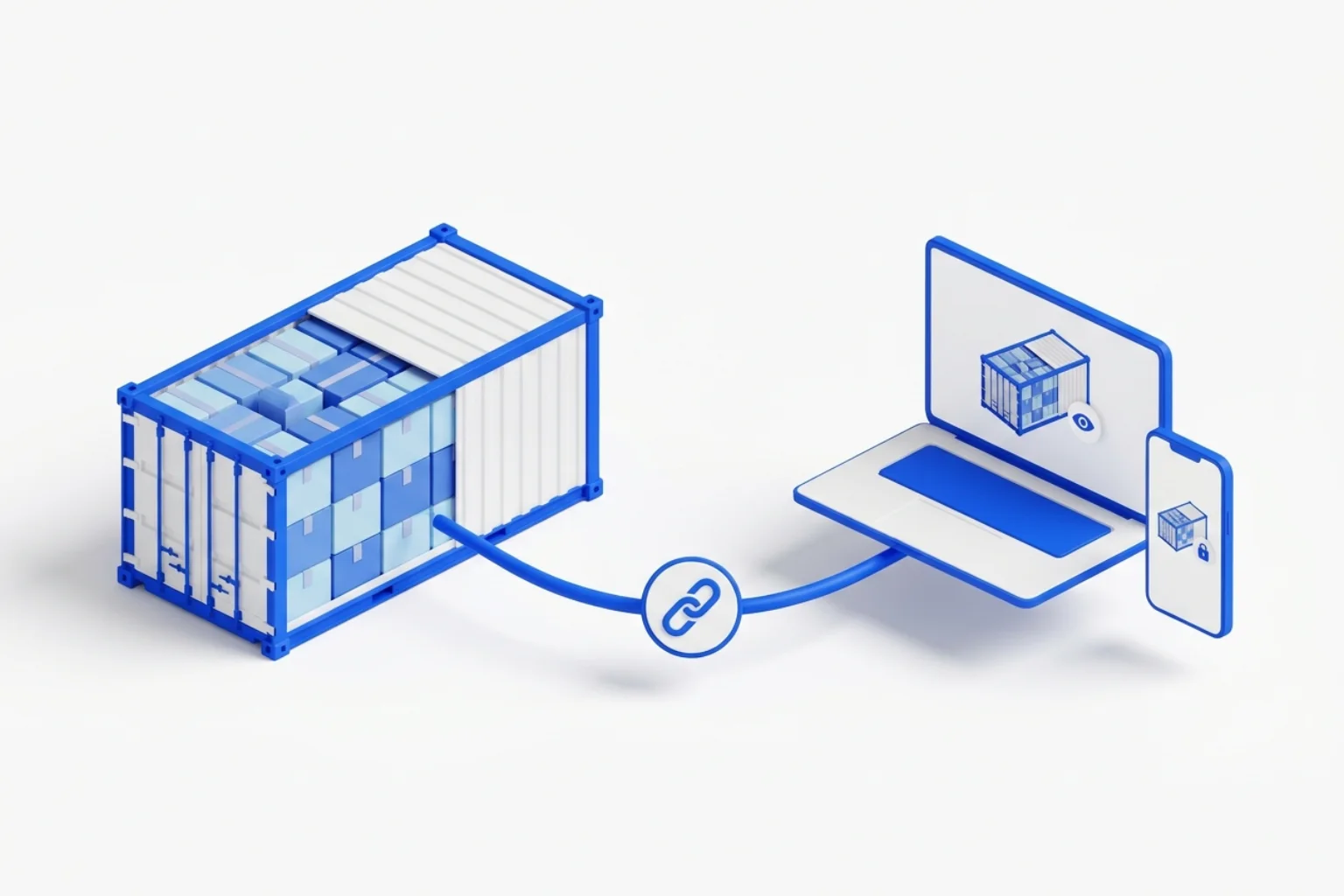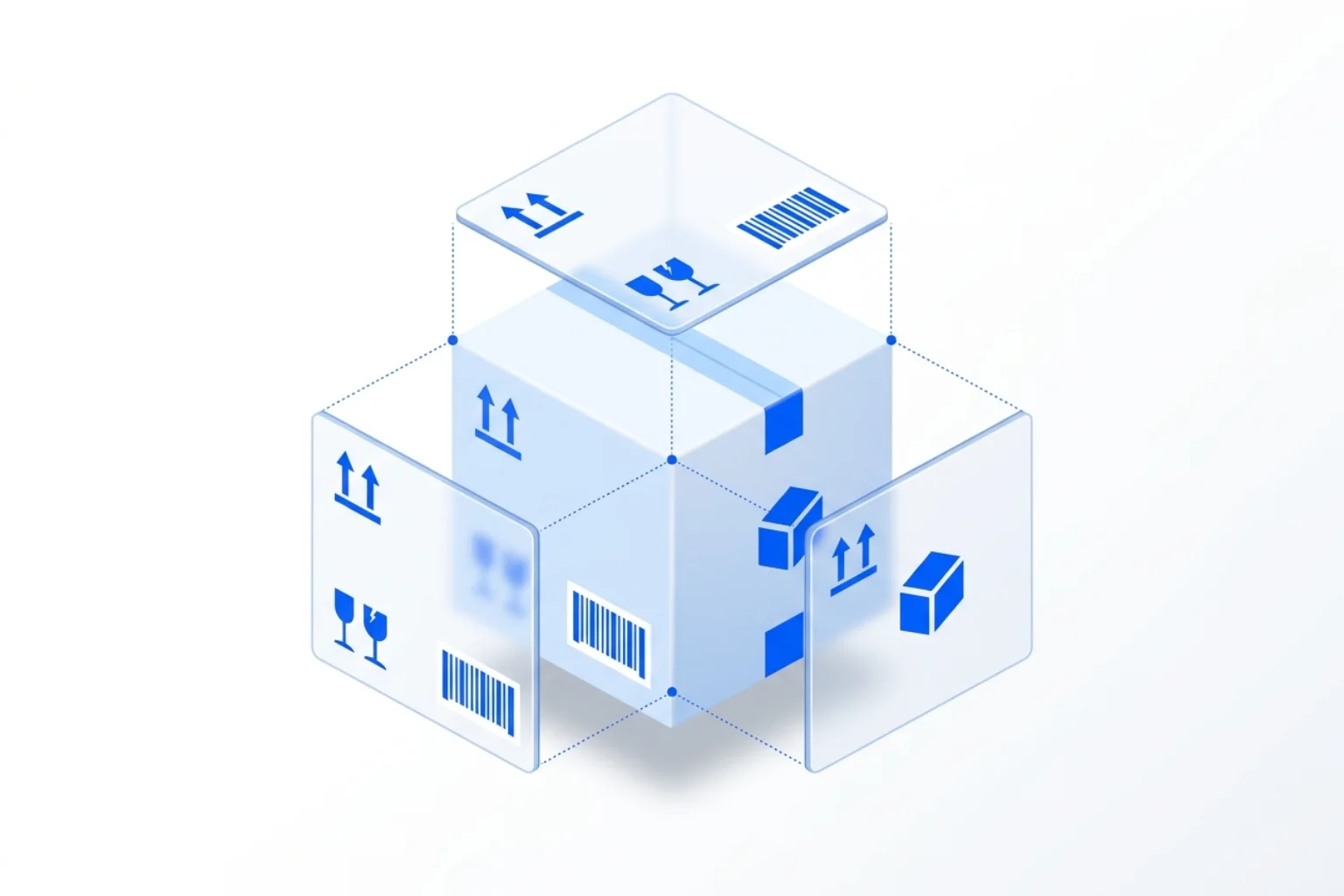
3D multi-face box textures let you map real carton artwork, shipping marks and handling icons onto specific physical faces of each cargo type. Unlike colour-only blocks, textured boxes show which side faces the door and how permitted rotations affect label visibility before loading starts.
Why colour-coded blocks are not always enough for real shipments
Solid-colour boxes are fast for early capacity checks, yet warehouse teams and overseas buyers often need to see which face carries the barcode, model label or upright handling symbol. When two cartons share similar dimensions, colour alone makes it easy to misread orientation during stuffing.
With multi-face box textures in Container Load Tool Pro, every cargo SKU can carry bespoke images for its front, back, top, left and right faces—or a single universal texture across all six sides. The 3D scene rotates each textured box using a right-handed orientation basis so printed marks stay true to the physical carton.
- Spot upright-only labels and shipping marks directly on the 3D load.
- Distinguish visually similar SKUs inside mixed-cargo orders at a glance.
- Confirm which face is visible from the container doors for barcode scanning.
- Reduce misunderstandings between exporters, factories and receiving warehouses.
How per-face mapping, mirroring and aspect-locked cropping work
Open the Box Texture Studio directly on any cargo card. Drag the live 3D carton preview to rotate it, click any face to select it, and drop a JPG, PNG or WebP image onto the crop canvas. The crop frame automatically locks to that face’s real physical dimensions (for example, length × height for the front or length × width for the top) so logos never stretch.
Before saving, you can pan, zoom, rotate in 90-degree increments or fine angles, choose Fill or Fit mode, and enable front/back or left/right mirroring to avoid uploading duplicate artwork. Every face is baked client-side into an optimised WebP or JPEG file under 1 MB.
| Face target | Physical dimensions used | Common artwork | Mirror option |
|---|---|---|---|
| Front / Back | Box length × height | Main shipping mark, brand logo, SKU code | Apply to back face too |
| Top | Box length × width | Tape seam, top barcode, pallet mark | Independent top face |
| Left / Right side | Box width × height | Side handling icons, gross weight table | Apply to both sides |
| All 6 faces | Mapped across every side | Uniform carton print or colour pattern | Single upload for all sides |
How box textures stay synced across cloud projects and shared links
Free accounts can open the 3D Box Texture Studio in preview mode to test face selection, rotation and cropping before upgrading. On an active Pro plan, clicking Apply uploads the baked face files to Cloudflare R2 under your account (up to 200 stored textures) with strict image header validation.
Because textures are stored by unguessable keys and attached to the cargo item, they automatically appear when you reopen a cloud project on another device and when a warehouse or buyer opens a 90-day read-only share link. Deleting your account removes all uploaded textures from storage.
Best practices and limits to keep in mind
Keep artwork high-contrast and legible at medium distance so shipping marks stay clear even when viewing an entire 40HQ container. Use the Orientation toggle in the 3D scene alongside textures to verify original front faces on rotated cartons.
Remember that visual textures do not alter physical packing constraints. Set permitted rotation, maximum layers and gross weight explicitly, and confirm packaging compression strength and cargo securing on site against the CTU Code.
- Supported formats: JPG, PNG and WebP (auto-optimised below 1 MB per face).
- Preview mode is available to inspect the studio workflow before upgrading to Pro.
- Pair textures with explicit upright or fixed-rotation rules when labels must face a specific direction.
- Always verify physical carton strength and door clearance outside the 3D preview.
Open the load planner
Use your actual carton dimensions, weight and stacking rules to turn this example into a checked layout.
FAQ
Can I upload different images for the front, top and sides of one box?
Yes. In the 3D Box Texture Studio you can select Front, Back, Top, Left, Right or All faces independently, or turn on symmetry mirroring for opposite sides.
Will my box textures show up when I share a loading plan link?
Yes. Uploaded textures are stored in Cloudflare R2 and automatically rendered when anyone opens your 90-day read-only share link—no login required for the viewer.
Does uploading textures change how many cartons fit in the container?
No. Textures are visual only. Carton counts and layout coordinates depend solely on dimensions, weights, clearances, permitted rotations and stacking limits.